
If you keep shortening links one-by-one, you’ll burn hours you could spend getting traffic. This guide shows you how to set up a Google Sheets URL shortener that bulk-builds UTMs, calls your ShrinkForge API, and drops clean short links back into the sheet—ready to copy, publish, and track.
It’s a fast, no-code workflow anyone on your team can run. You’ll learn:
- The sheet layout (columns) that makes UTM tracking bullet-proof
- A tiny Apps Script to auto-shorten in bulk via API
- How to prevent duplicates, handle errors, and log issues
- Simple ways to double CTR from your short links without guessing
Who this is for: creators, affiliates, community managers, and media buyers who ship a lot of links and want clean analytics without another SaaS in the middle.
What you’ll have at the end
- A Google Sheets template that builds campaign-ready URLs with UTMs
- A “Short URL” column that fills automatically by calling ShrinkForge’s API
- A status column that tells you if something needs fixing (bad URL, missing UTM, rate limit)
- One click to re-run and refresh short links any time
Why Use a Google Sheets URL Shortener for Bulk Link Management?
- Speed & scale: paste 100 URLs, press a button, get 100 short links.
- Consistency: columns enforce clean UTMs, which means clear reporting.
- Portability: anyone can open the Sheet and run the script—no local setup.
- Control: add validations (e.g., source/medium lists) and protect formulas.
If you’re optimizing earnings by geography (Tier-1 vs mixed traffic, desktop vs mobile), structured links are how you prove which placements actually pay. Pair this with your payout rates page to decide which GEOs to chase first.
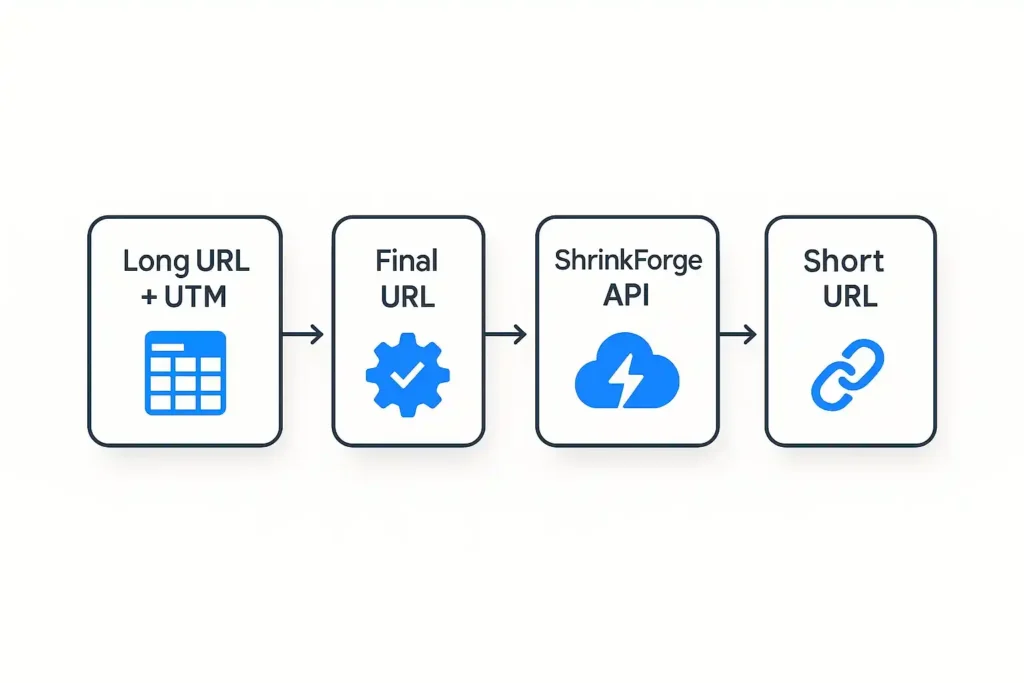
Step 1 — Make the Sheet (the exact columns)
Open a new Google Sheet and create Row 1 headers exactly like this:
| A | B | C | D | E | F | G | H | I | J |
|---|---|---|---|---|---|---|---|---|---|
| Long URL | Title/Note | Source | Medium | Campaign | Term (opt) | Content (opt) | Final URL (auto) | Short URL (auto) | Status |
What each column does
- Long URL – the raw destination (must include
https://). - Title/Note – human label (video title, post name).
- Source / Medium / Campaign – your core UTMs (e.g.,
youtube,comment,launch-q1). - Term / Content – optional UTMs for keywords/creative tests.
- Final URL – formula that assembles the UTM’d URL.
- Short URL – filled by the script (calls API).
- Status – success/error message so you can fix fast.
The UTM formula for “Final URL”
In H2 paste this formula and drag it down:
=IFERROR(
  IF(A2="","",
    A2 &
    IF(REGEXMATCH(A2,"[?]"), "&", "?") &
    "utm_source=" & ENCODEURL(C2) &
    "&utm_medium=" & ENCODEURL(D2) &
    "&utm_campaign=" & ENCODEURL(E2) &
    IF(F2<>"","&utm_term=" & ENCODEURL(F2),"") &
    IF(G2<>"","&utm_content=" & ENCODEURL(G2),"")
  ),
"")
Data validation (optional but recommended for google sheets url shortener):
Create dropdown lists for Source and Medium (e.g., youtube, reddit, blog, pinterest and description, comment, post, dm). You’ll get fewer typos and prettier reports.
Step 2 — Get your API key (one-time)
In your ShrinkForge account go to Dashboard → API and copy your API Key. If you don’t see it, check the FAQ for instructions on enabling API access.
You’ll paste this key into the script in the next step. Keep it private.
Step 3 — Add the bulk shortener script (no code experience needed)
- In Google Sheets, click Extensions → Apps Script.
- Delete anything inside
Code.gsand paste the script below. - Update the
API_ENDPOINTandAPI_KEYplaceholders to match your account (check your dashboard’s API docs for the exact endpoint & params). - Save, then click Run → authorize the script (Google will ask you to approve it once).
/**
 * ShrinkForge Bulk Shortener for Google Sheets
 * - Reads Long URL + UTM columns
 * - Writes Short URL + Status
 * - Skips rows that already have a Short URL (idempotent)
 * - Adds simple rate-limit backoff + error handling
 *
 * How to use:
 *   - Put data in columns A:G (per the guide)
 *   - Final URL formula in column H
 *   - Short URL will be written to column I
 *   - Status to column J
 */

const API_ENDPOINT = 'https://YOUR_ENDPOINT_HERE'; // e.g. https://shrinkforge.com/api/shorten
const API_KEY      = 'YOUR_API_KEY_HERE';          // paste your key
const START_ROW    = 2;  // first data row
const COL_FINAL    = 8;  // H = Final URL
const COL_SHORT    = 9;  // I = Short URL
const COL_STATUS   = 10; // J = Status

function ShortenAll() {
  const sh = SpreadsheetApp.getActiveSheet();
  const last = sh.getLastRow();
  if (last < START_ROW) {
    SpreadsheetApp.getActive().toast('No data found.');
    return;
  }

  const range = sh.getRange(START_ROW, 1, last-START_ROW+1, COL_STATUS);
  const values = range.getValues();

  // Process each row
  for (let i = 0; i < values.length; i++) {
    const rowIdx   = START_ROW + i;
    const finalUrl = values[i][COL_FINAL-1]; // zero-based
    const shortUrl = values[i][COL_SHORT-1];

    // Skip if no final URL or already shortened
    if (!finalUrl || shortUrl) continue;

    try {
      const result = shortenOnce_(finalUrl);
      // Expect { short: "https://frge.top/abc123" } or similar
      if (result && result.short) {
        sh.getRange(rowIdx, COL_SHORT).setValue(result.short);
        sh.getRange(rowIdx, COL_STATUS).setValue('OK');
      } else {
        sh.getRange(rowIdx, COL_STATUS).setValue('Unexpected response');
      }
    } catch (err) {
      sh.getRange(rowIdx, COL_STATUS).setValue('ERR: ' + String(err).slice(0, 120));
      // small backoff to be gentle with the API
      Utilities.sleep(350);
    }
  }

  SpreadsheetApp.getActive().toast('Shortening complete.');
}

function shortenOnce_(finalUrl) {
  // Adjust fields to match your account’s API (query or JSON body).
  // The most common pattern is GET with ?api=KEY&url=URL
  const url = API_ENDPOINT + '?api=' + encodeURIComponent(API_KEY) +
              '&url=' + encodeURIComponent(finalUrl);

  const res = UrlFetchApp.fetch(url, { method: 'get', muteHttpExceptions: true, contentType: 'application/json' });
  const status = res.getResponseCode();
  const body = res.getContentText();

  if (status >= 400) {
    throw new Error('HTTP ' + status + ' ' + body);
  }

  // Try to parse JSON first; fall back to plain text
  try {
    const json = JSON.parse(body);
    // Standardize a return shape
    if (json.short || json.shortlink || json.link) {
      return { short: json.short || json.shortlink || json.link };
    }
    // Some APIs wrap in "data"
    if (json.data && (json.data.short || json.data.link)) {
      return { short: json.data.short || json.data.link };
    }
  } catch (_) {
    // Some APIs return plain text short URL
    if (/^https?:\/\//i.test(body.trim())) {
      return { short: body.trim() };
    }
  }

  throw new Error('Parse error: ' + body.slice(0, 160));
}

// Optional: menu shortcut
function onOpen(){
  SpreadsheetApp.getUi().createMenu('ShrinkForge')
    .addItem('Shorten all', 'ShortenAll')
    .addToUi();
}
Add a menu button (optional): If you want a friendly menu item, add this snippet at the bottom:
function onOpen(){
  SpreadsheetApp.getUi()
    .createMenu('ShrinkForge')
    .addItem('Shorten all', 'ShortenAll')
    .addToUi();
}
Now you’ll have ShrinkForge → Google sheets url shortener to shorten all in the Sheets menu.
New to Apps Script? Read Google’s official guide on automating tasks in Google Sheets
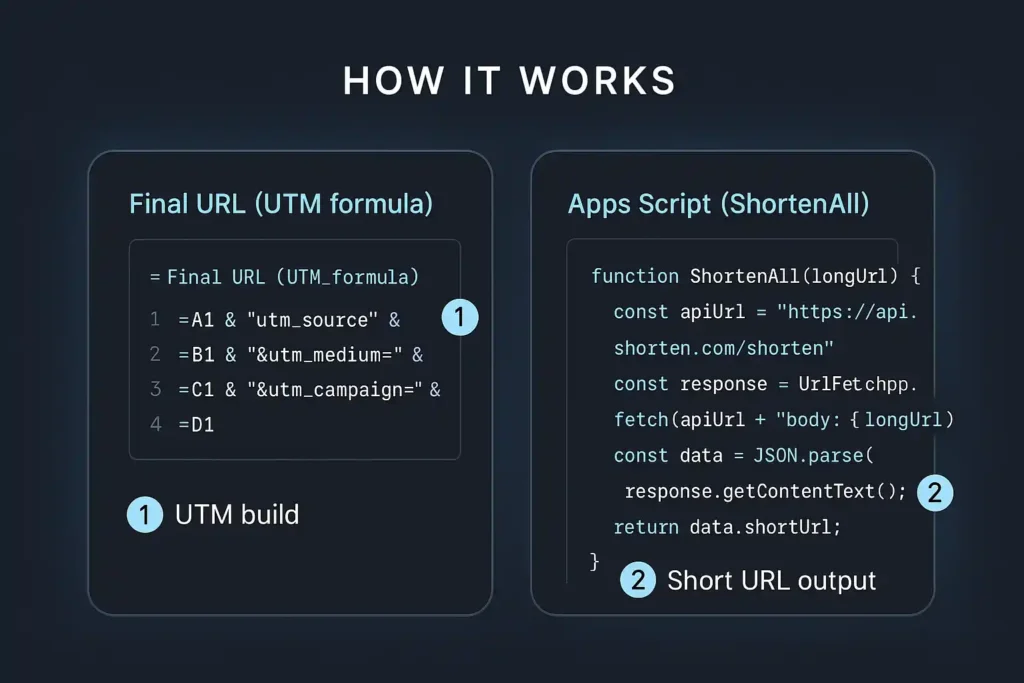
Step 4 — Run it (and re-run safely)
- Paste a batch of destinations into A: Long URL and fill out UTMs.
- Check that H: Final URL is building correctly.
- Go to ShrinkForge → Shorten all (or Run → ShortenAll).
- Watch as I: Short URL fills in; J: Status should say
OK.
Re-runs are safe. The script skips rows that already have a Short URL. If you want to regenerate a link (e.g., you changed a UTM), just clear the old short link in column I for that row and run again.
Step 5 — Common errors (and quick fixes)
- “ERR: HTTP 4xx” – usually an auth/endpoint issue. Recheck
API_ENDPOINT,API_KEY, and make sure your account has API access. - “Unexpected response / Parse error” – your endpoint returns a different JSON shape; update the property names in the script’s
shortenOnce_return mapping. - “No data found” – you hit run on an empty sheet; paste rows starting at Row 2.
- Blocked URL – if a destination violates policy, it won’t shorten. Review rules in the FAQ and replace the URL.
Step 6 — QA the links before you ship
- Preview random short links and confirm they resolve to the UTM’d Final URL.
- Sort by Status and fix any
ERR:rows first. - Spot-check UTMs for casing (
utm_source=youtubevsYouTube—pick one and stick to it). - Protect your UTM columns once you’re confident (Data → Protect sheets and ranges).
Advanced extras (when you’re ready)
1) Prevent duplicates automatically
Add a simple de-duplication step: if the Final URL already exists above, copy the existing Short URL instead of calling the API. That keeps a single short link (Google sheets URL shortener) per asset across campaigns.
2) Device or GEO-specific destinations
Create separate rows for mobile and desktop versions of a page, or for different GEO landers, and track performance side-by-side. Once you see which one earns more, standardize your placements. And make the google sheets url shortener as a powerful tool.
3) Team workflow
- One tab for Drafts (writers paste ideas + raw links).
- One tab for Live (approved rows only).
- Only the Live tab gets shortened, so your stats stay clean.
CTR boosters that actually move the needle
Your short link is only as good as its placement. These small tweaks tend to lift click-through:
- Lead with value: introduce the link with a benefit, not “check this out.”
- Use pinned placements: in YouTube, pin the top comment; in blogs, above-the-fold link blocks beat footer links every time.
- One link per micro-moment: multiple links side-by-side cannibalize clicks—give people one clear action.
- Match the promise: the destination headline should repeat the promise you just made in the post or caption.
If you aren’t sure where to invest next, glance at your GEO performance vs CPM and prioritize traffic that aligns with your best payout rates.
Quick Troubleshooting (Google Sheets URL Shortener)
My API key says “invalid” — what did I miss?
Double-check you pasted the live key (not a test key), and that API access is enabled in your account. Make sure there are no leading/trailing spaces.
I get “Parse error” in the Status column.
Your endpoint returns a different JSON shape. Update the script’s shortenOnce_ mapping to read the correct property (e.g., json.link or json.data.short).
Running the script does nothing.
Rows must start at Row 2 and column H (“Final URL”) must not be empty. Re-authorize the script in Extensions → Apps Script if Google prompts for permissions.
Rate-limited or “HTTP 429/5xx” errors.
Wait a few seconds and run again. The script includes a small backoff; for very large batches, process in chunks (e.g., 200 rows at a time).
The UTM formula breaks when I paste it.
Ensure straight quotes (“) not smart quotes (“ ”). If your editor altered them, copy from the one-line variant in the post and paste directly into H2.
Short links don’t match my updated UTMs.
Clear the old value in the “Short URL” cell for that row, then run the script again. It will regenerate only the cleared rows.
Where to go next
Now that your short links are clean, read our step-by-step UTM guide to interpret what the numbers mean and make better placement decisions: UTM Tracking & Analytics (Beginner to Pro).
Copy-paste checklist
- Create the sheet with columns A–J from this guide.
- Paste the Final URL formula in H2 and drag down.
- Add the Apps Script (update
API_ENDPOINT+API_KEY). - Run ShrinkForge → Shorten all to fill Short URL.
- Fix any
ERR:in Status and re-run. - Ship links; track performance; repeat what pays.
You’re done. This simple Google Sheets shortener will save you hours every week, keep your UTMs pristine, and make it obvious which channels, devices, and GEOs actually earn. When you’re ready to scale, just paste more rows and click once.